AdvancedWeb Security (OWASP Top 10) · Lesson 11 of 13 · Updated ·
Secure File Uploads — Web Shells, Fake Extensions, Magic Bytes and Safe Storage
Profile photos, resumes, assignment PDFs, payment screenshots — almost every web app has an upload form. An upload form is unusual: it lets anyone place a file of their choice on your system. If the app trusts that file too much, the attacker can take over the server, attack other users, or simply fill your disk.
This lesson shows the main attacks and a checklist of defences, with a Python upload checker you can run.
1. What can go wrong?
| Attack | What the attacker uploads | Result if it works |
|---|---|---|
| Web shell | a script such as shell.php | the server runs it: full remote control |
| Double extension | photo.jpg.php | a weak check sees ".jpg" and lets it through |
| Fake Content-Type | a script labelled image/jpeg | the check trusts the label, not the content |
| Stored XSS via file | an .svg or .html file containing JavaScript | the script runs in other users' browsers on your domain |
| Path traversal in name | file name ../../app/config.py | overwrites files outside the upload folder |
| Denial of service | a 5 GB file, or millions of small ones | full disk, slow or crashed server |
| Malware for users | an infected document | other students download it from your trusted site |
A web shell is a small script that runs commands sent by the attacker. It works when the server is configured to execute files of that type (for example PHP) from the upload folder. One line of PHP is enough:
<?php system($_GET['c']); ?>
Visiting /uploads/shell.php?c=whoami would then run whoami on the server.
2. Never trust what the browser says
An upload request contains three things the attacker fully controls:
- the file name (
photo.jpg.php) - the Content-Type header (
image/jpeg) — the browser's claim about the type - the bytes of the file
Checking only the Content-Type is like a hostel guard who accepts any visitor whose shirt says "STUDENT". The header is just text the attacker can set to anything.
Magic bytes: look at the content
Most file formats start with fixed bytes called a signature or magic bytes. A PNG always begins with 89 50 4E 47 0D 0A 1A 0A, a JPEG with FF D8 FF, a PDF with %PDF-. Checking these confirms the content at least starts like the claimed type.
3. An upload checker in Python
This checker applies three rules in order: size limit, allowlisted extension (only the last extension counts), and magic bytes matching that extension.
SIGNATURES = {
    b"\x89PNG\r\n\x1a\n": "png",
    b"\xff\xd8\xff": "jpg",
    b"%PDF-": "pdf",
}
ALLOWED = {"png", "jpg", "pdf"}
MAX_BYTES = 2 * 1024 * 1024   # 2 MB

def sniff(data):
    for magic, kind in SIGNATURES.items():
        if data.startswith(magic):
            return kind
    return None

def check_upload(filename, declared_type, data):
    if len(data) > MAX_BYTES:
        return "rejected: too large"
    ext = filename.rsplit(".", 1)[-1].lower() if "." in filename else ""
    if ext not in ALLOWED:
        return f"rejected: extension .{ext} not allowed"
    kind = sniff(data)
    if kind != ext:
        return f"rejected: content looks like {kind}, not {ext}"
    return f"accepted as {kind}"

uploads = [
    ("resume.pdf", "application/pdf", b"%PDF-1.7 ..."),
    ("photo.jpg", "image/jpeg", b"\xff\xd8\xff\xe0 ..."),
    ("shell.php", "image/jpeg", b"<?php system($_GET['c']); ?>"),
    ("photo.jpg.php", "image/jpeg", b"\xff\xd8\xff<?php ... ?>"),
    ("cat.png", "image/png", b"<?php system($_GET['c']); ?>"),
    ("big.pdf", "application/pdf", b"%PDF-" + b"0" * 3_000_000),
]
for name, declared, data in uploads:
    print(name)
    print("   ", check_upload(name, declared, data))
resume.pdf
    accepted as pdf
photo.jpg
    accepted as jpg
shell.php
    rejected: extension .php not allowed
photo.jpg.php
    rejected: extension .php not allowed
cat.png
    rejected: content looks like None, not png
big.pdf
    rejected: too large
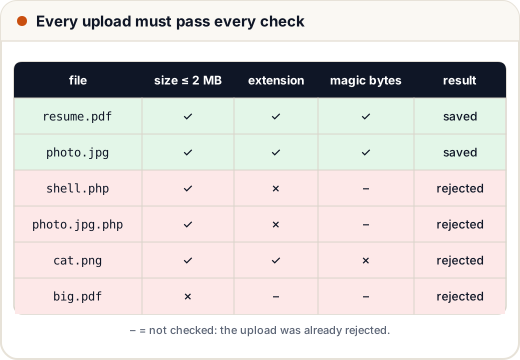
Notice that every malicious upload was labelled image/jpeg or image/png, and the checker never looked at that label. Also notice the order: the cheap size check runs first. (In a real server the size limit is enforced while receiving the upload, for example client_max_body_size in Nginx or MAX_CONTENT_LENGTH in Flask, so a huge file is never fully read.)
Magic bytes are not enough on their own
A file can start with valid JPEG bytes and still contain a script later (like photo.jpg.php above, which the extension check caught). Magic bytes prove the start of the file looks right; they do not prove the file is harmless. That is why the next two sections matter more than any single check.
4. Store uploads safely
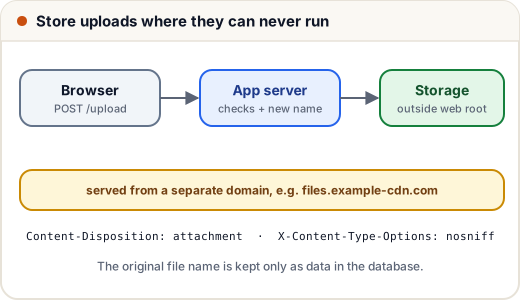
- Give every file a new random name. Never use the user's file name as a path. This also stops path traversal and overwriting.
import secrets

def storage_name(kind):
    return secrets.token_hex(16) + "." + kind

name = storage_name("pdf")
print(len(name), name.endswith(".pdf"))
print(storage_name("pdf") != storage_name("pdf"))
36 True
True
token_hex(16) gives 32 random hexadecimal characters, so names cannot be guessed or collide in practice. Keep the original name only as data in the database, to show it in the interface.
-
Store files outside the web root, or in object storage such as Amazon S3. The web root is the folder the web server serves and may execute files from. If uploads are never there, a web shell is just a harmless text file.
-
Never execute anything in the upload location. If files must sit on the web server, disable script execution for that folder.
-
Re-process images. Opening an image with an image library and saving a fresh copy (for example resizing a profile photo) removes hidden data and most tricks inside the file.
-
Scan for malware if users download each other's files, for example with an antivirus engine such as ClamAV.
5. Serve uploads safely
How you send the file back matters as much as how you store it:
| Measure | Why |
|---|---|
| Serve from a separate domain (e.g. a CDN domain) | a script in an uploaded file cannot read cookies or pages of your main site |
Content-Disposition: attachment | the browser downloads the file instead of opening it in your site |
X-Content-Type-Options: nosniff | stops the browser guessing that a "text" file is HTML or JavaScript |
Set the correct Content-Type yourself | based on your check, never on what the uploader sent |
| Check ownership before download | a student's resume must not be readable by changing an id (IDOR) |
SVG needs special care. An SVG image is XML and can contain <script>. If you open it directly on your domain, the script runs like stored XSS. Either do not accept SVG from users, convert it to PNG, or serve it only as a download from a separate domain.
6. Limit the volume
- Maximum file size per upload, and a total storage quota per user.
- A limit on uploads per minute (rate limiting).
- Watch out for zip bombs: a small compressed file that expands to gigabytes. If you unzip uploads, limit the total extracted size and the number of files.
Common mistakes
- Trusting the
Content-Typeheader or checking only the first extension (photo.jpg.php). - Using a blocklist (
no .php) instead of an allowlist; attackers try.phtml,.php5,.PhPand more. - Saving files under the user's file name, inside the web root.
- Serving user files from the main domain with their original type, so SVG or HTML runs as a script.
- Forgetting ownership checks on download links.
Quick recap
- Uploads let strangers put files on your system: web shells, XSS via SVG/HTML, traversal, huge files.
- Never trust the file name or Content-Type; allowlist the last extension and check magic bytes.
- Rename files randomly, store them outside the web root or in object storage, never execute them.
- Serve from a separate domain with
Content-Disposition: attachmentandnosniff; check ownership. - Limit size, count and extracted size; re-process images and scan shared files.