Web Development · Lesson 3 of 12 · Updated ·
HTML Forms and Semantic HTML — Inputs, Validation, Accessibility and SEO
Forms are how websites collect information — sign-ups, logins, searches, payments. Semantic HTML means using tags that describe their meaning, which helps screen readers and search engines.
1. A complete form
<form action="/signup" method="post">
  <label for="name">Full name</label>
  <input id="name" name="name" type="text" required minlength="2">

  <label for="email">Email</label>
  <input id="email" name="email" type="email" required>

  <label for="phone">Mobile</label>
  <input id="phone" name="phone" type="tel" pattern="[6-9][0-9]{9}" placeholder="98765 43210">

  <label for="course">Course</label>
  <select id="course" name="course">
    <option value="dsa">DSA</option>
    <option value="web">Web Development</option>
  </select>

  <label><input type="checkbox" name="terms" required> I agree to the terms</label>

  <button type="submit">Create account</button>
</form>
action= where the data goes;method=get(in the URL, for searches) orpost(in the body, for sign-ups and anything private).nameis the key the server receives (name=Asha&email=…).<label for="id">connects a label to its input — clicking the label focuses the input, and screen readers read it. Never skip labels.
2. Input types
| Type | Gives you |
|---|---|
text, password | plain text, hidden text |
email, url, tel | checks format; phones show the right keyboard |
number (min, max, step) | numeric keypad, arrows |
date, time | a date/time picker |
checkbox, radio | many choices / one choice (same name for radio groups) |
file | file upload |
range, color | slider, colour picker |
Plus <textarea> for long text and <select> for dropdowns.
3. Built-in validation
required, minlength, maxlength, min, max, pattern (a regex) make the browser block bad input before sending.
Client-side validation is for convenience, not security. Anyone can bypass the browser. The server must always validate again.
4. Semantic HTML
Instead of <div> everywhere, use tags that say what the content is:
| Tag | Meaning |
|---|---|
<header> | top of the page or a section (logo, title) |
<nav> | main navigation links |
<main> | the main content (one per page) |
<section> | a themed group of content with a heading |
<article> | self-contained content (a blog post, a course card) |
<aside> | side content (related links) |
<footer> | bottom (contact, copyright) |
<figure> / <figcaption> | an image with a caption |
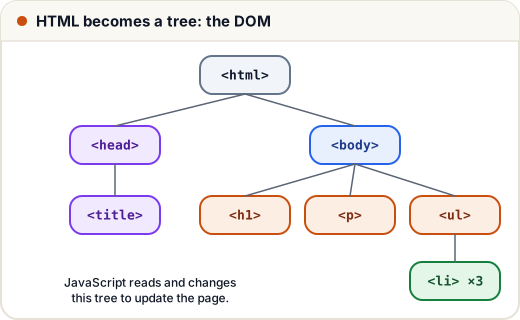
<body>
  <header><nav>…</nav></header>
  <main>
    <article>
      <h1>Learn SQL Joins</h1>
      <p>…</p>
    </article>
  </main>
  <footer>© Skills101</footer>
</body>
Why it matters:
- Accessibility — screen readers let blind users jump to
mainornav. - SEO — Google understands the page better.
- Readable code — easier for your team.
5. Accessibility basics (a11y)
- Every input has a label; every image has alt text.
- Use real
<button>s for actions and<a>for navigation (they work with the keyboard). - Good colour contrast; don't rely only on colour to show meaning.
- Check with the Lighthouse tab in Chrome DevTools.
Common mistakes
- Inputs without labels (placeholder text is not a label).
- Trusting browser validation for security.
- Using
<div onclick>instead of a<button>.
Quick recap
- form (action, method) + inputs with name; labels with
for. - Choose the right input type; use required, pattern, min, max.
- Always validate again on the server.
- Semantic tags: header, nav, main, section, article, aside, footer.