Web Development · Lesson 2 of 12 · Updated ·
HTML Basics — Tags, Structure, Links, Images, Lists and Tables
HTML (HyperText Markup Language) describes the structure of a web page: this is a heading, this is a paragraph, this is an image. It's not a programming language — it's a markup language made of tags.
1. Your first page
Create index.html and open it in a browser:
<!DOCTYPE html>
<html lang="en">
  <head>
    <meta charset="UTF-8">
    <meta name="viewport" content="width=device-width, initial-scale=1">
    <title>Asha's Portfolio</title>
  </head>
  <body>
    <h1>Hi, I'm Asha</h1>
    <p>I'm learning web development at <a href="https://skills101.in">Skills101</a>.</p>
  </body>
</html>
<!DOCTYPE html>— "this is modern HTML5".<head>— information about the page (title, character set, links to CSS). Not shown on the page.<body>— everything you see.- The viewport meta tag makes the page work properly on phones — always include it.
2. Tags and attributes
Most tags have an opening and closing part: <p>text</p>. Some are empty: <img>, <br>, <input>.
Attributes add information inside the opening tag: <a href="…">, <img src="…" alt="…">.
3. The tags you'll use every day
| Tag | Purpose |
|---|---|
<h1> … <h6> | headings (one <h1> per page) |
<p> | paragraph |
<a href="url"> | link |
<img src="" alt=""> | image (alt = text description for screen readers and SEO) |
<ul>, <ol>, <li> | bulleted list, numbered list, list item |
<strong>, <em> | important (bold), emphasis (italic) |
<div> | a generic block container |
<span> | a generic inline container |
<br> | line break |
<button> | a button |
Block vs inline
- Block elements start on a new line and take the full width:
div,p,h1,ul. - Inline elements sit inside a line:
span,a,strong,img.
4. Lists and tables
<ul>
  <li>HTML</li>
  <li>CSS</li>
  <li>JavaScript</li>
</ul>

<table>
  <thead>
    <tr><th>Name</th><th>Marks</th></tr>
  </thead>
  <tbody>
    <tr><td>Asha</td><td>92</td></tr>
    <tr><td>Ravi</td><td>74</td></tr>
  </tbody>
</table>
tr = table row, th = header cell, td = data cell. Use tables for tabular data, never for page layout.
5. HTML becomes a tree: the DOM
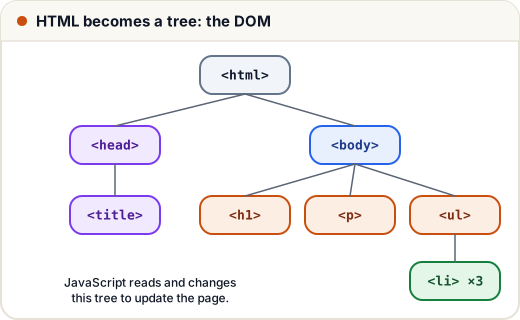
The browser reads your HTML and builds a tree of objects called the DOM (Document Object Model). CSS styles this tree and JavaScript changes it — that's how pages update without reloading.
6. Good habits
- Indent nested tags so the structure is clear.
- Always write
alttext for images (accessibility and Google ranking). - Use lowercase tags and quote attribute values.
- Validate your HTML with the W3C validator when something looks wrong.
Common mistakes
- Forgetting to close tags (
<p>without</p>inside complex layouts). - Using several
<h1>s or skipping heading levels just for size — use CSS for size. - Missing the viewport meta tag, so the page looks tiny on phones.
Quick recap
- HTML = structure, written with tags and attributes.
<head>for page info,<body>for content; include charset and viewport.- Everyday tags: headings, p, a, img (with alt), lists, tables, div, span.
- The browser turns HTML into the DOM tree.