AdvancedGit & GitHub · Lesson 7 of 9 · Updated ·
Resolving Git Merge Conflicts — Step by Step, with diff3, ours and theirs
A merge conflict is not an error and nothing is broken. It is Git saying: "Two people changed the same lines in different ways, and I will not guess which one is right." This lesson walks through a real conflict from start to finish. Every output shown was produced by actually running the commands (your commit ids will differ).
1. How Git merges: the three-way merge
When you merge a branch, Git looks at three versions of each file:
- base — the common ancestor, the last commit both branches share
- ours — the version on the branch you are on (
HEAD) - theirs — the version on the branch you are merging in
For each region of the file, Git applies one simple rule:
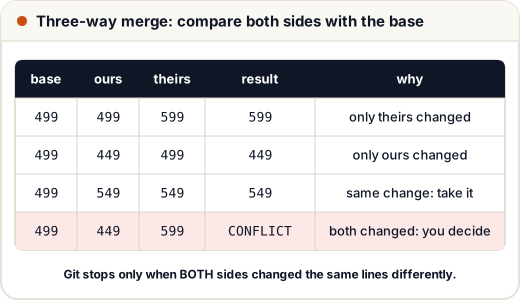
| ours vs base | theirs vs base | Result |
|---|---|---|
| unchanged | changed | take theirs |
| changed | unchanged | take ours |
| both made the same change | take it | |
| changed | changed differently | conflict — you decide |
This is why most merges succeed automatically: usually the two branches touched different parts of the code.
2. Creating a conflict on purpose
A shop sells a course at ₹499. On main, the team gives a festive discount (₹449). Meanwhile, on feature/pricing, someone raises the price to ₹599.
git switch -c feature/pricing
# change 499 to 599 in price.js
git commit -am "Raise price to 599"
git switch main
# change 499 to 449 in price.js
git commit -am "Festive discount: 449"
git merge feature/pricing
Auto-merging price.js
CONFLICT (content): Merge conflict in price.js
Automatic merge failed; fix conflicts and then commit the result.
3. Reading the situation
First, always run git status:
On branch main
You have unmerged paths.
  (fix conflicts and run "git commit")
  (use "git merge --abort" to abort the merge)

Unmerged paths:
  (use "git add <file>..." to mark resolution)
	both modified:   price.js

no changes added to commit (use "git add" and/or "git commit -a")
"both modified" tells you which files need attention. Git has already written into price.js everything it could merge, plus conflict markers around the part it could not:
<<<<<<< HEAD
const price = 449;
=======
const price = 599;
>>>>>>> feature/pricing
const gst = 0.18;
| Marker | Meaning |
|---|---|
<<<<<<< HEAD | start of ours (the branch you are on) |
======= | divider |
>>>>>>> feature/pricing | end of theirs (the branch being merged) |
Notice const gst = 0.18; has no markers: neither side changed it, so Git kept it as it was.
4. See the base too: the diff3 style
The default markers show the two results but not what each side started from. Turn on the diff3 style (newer Git versions also offer zdiff3, which shows the same thing more compactly):
git config --global merge.conflictStyle diff3
The same conflict now looks like this:
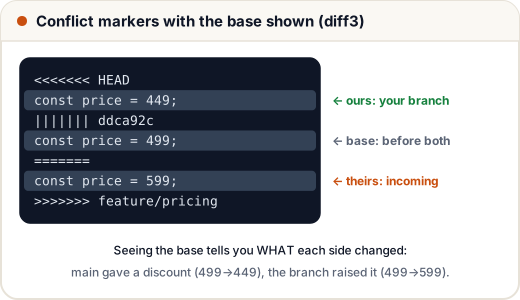
<<<<<<< HEAD
const price = 449;
||||||| ddca92c
const price = 499;
=======
const price = 599;
>>>>>>> feature/pricing
const gst = 0.18;
Now the story is clear: one side lowered the price for a festival and the other raised the base price. You might decide the correct answer is the new base price with the festive discount applied — perhaps ₹549. That is a business decision, which is exactly why Git asks a human.
5. Resolving it
- Edit the file to the final, correct code and delete every marker line.
- Run the tests or the app to check it still works.
- Stage the file — this tells Git "this conflict is resolved".
- Commit to finish the merge.
# price.js now contains:  const price = 549;  and  const gst = 0.18;
git add price.js
git status
On branch main
All conflicts fixed but you are still merging.
  (use "git commit" to conclude merge)

Changes to be committed:
	modified:   price.js
git commit --no-edit        # keeps Git's default message "Merge branch 'feature/pricing'"
git log --oneline --graph
*   8c5321b Merge branch 'feature/pricing'
|\
| * 6a74bae Raise price to 599
* | 4407a59 Festive discount: 449
|/
* ddca92c Add price
The graph shows both lines of work and the merge commit that joins them. Notice ddca92c is the same base commit named in the diff3 markers.
6. Escape hatches and shortcuts
| Command | Use it when |
|---|---|
git merge --abort | you want to cancel the whole merge and go back to before it started |
git checkout --ours file | you want your branch's version of this file (still git add it afterwards) |
git checkout --theirs file | you want the incoming branch's version of this file |
git diff | during a conflict, shows the conflicted parts |
git log --merge | lists the commits on both sides that touched the conflicted files |
VS Code and other editors show buttons — Accept Current, Accept Incoming, Accept Both, Compare — over each conflict. They only edit the text for you; you still need to check the result, then git add and commit.
7. Conflicts during a rebase
Rebase replays your commits one by one, so a conflict can appear in the middle:
error: could not apply 4407a59... Festive discount: 449
hint: Resolve all conflicts manually, mark them as resolved with
hint: "git add/rm <conflicted_files>", then run "git rebase --continue".
hint: You can instead skip this commit: run "git rebase --skip".
hint: To abort and get back to the state before "git rebase", run "git rebase --abort".
The fix is the same (edit, remove markers, git add), but you finish with git rebase --continue instead of git commit.
Watch out: during a rebase, "ours" and "theirs" are swapped. Git is replaying your commit on top of the other branch, so HEAD ("ours") is the branch you are rebasing onto, and "theirs" is your commit being replayed. Read the content, not just the labels.
8. Fewer and smaller conflicts
- Pull or rebase onto
mainoften — small differences mean small conflicts. - Keep branches short and pull requests small.
- Do not mix formatting changes (re-indenting a whole file) with real changes.
- Agree on a code formatter (for example Prettier) so whitespace never conflicts.
- For generated files like
package-lock.json, resolvepackage.jsonfirst, then regenerate the lock file withnpm installrather than editing it by hand.
Common mistakes
- Committing a file that still contains
<<<<<<<or>>>>>>>lines. Search for them before you commit. - Clicking "Accept Current" on everything without reading — you silently throw away a teammate's work.
- Panicking and deleting the repository.
git merge --abort(orgit rebase --abort) safely takes you back. - Forgetting that ours and theirs swap meaning during a rebase.
Quick recap
- Git compares base, ours and theirs; a conflict happens only when both sides changed the same lines differently.
git statuslists conflicted files; markers<<<<<<<,=======,>>>>>>>surround the conflict.merge.conflictStyle diff3also shows the base, which explains each side's change.- Resolve: edit, delete markers, test,
git add, thengit commit(orgit rebase --continue). git merge --abortcancels;--ours/--theirspick a whole side.