Git & GitHub · Lesson 1 of 5 · Updated ·
Git Basics — Install, init, add, commit, status, log and diff
Git keeps the full history of your code. You can see what changed, when and why, go back to any earlier version, and work with a team without overwriting each other's work. Every software company uses it — and recruiters look at your GitHub profile.
1. Install and configure (once)
Download from git-scm.com (Windows) or sudo apt install git (Linux). Then tell Git who you are:
git config --global user.name "Asha Verma"
git config --global user.email "asha@example.com"
git config --global init.defaultBranch main
2. The three areas
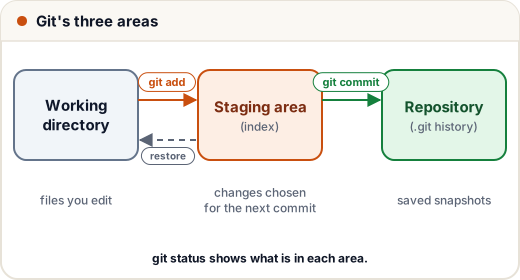
| Area | What it is |
|---|---|
| Working directory | the files you're editing |
| Staging area (index) | the changes you've chosen for the next commit |
Repository (.git folder) | the saved history of commits |
Staging lets you commit related changes together, even if you edited many files.
3. Everyday commands
mkdir portfolio && cd portfolio
git init                       # start tracking this folder
echo "# My Portfolio" > README.md
git status                     # what changed? what is staged?
git add README.md              # stage one file (git add . = everything)
git commit -m "Add README"     # save a snapshot with a message
git log --oneline              # history, one line per commit
a1b2c3d (HEAD -> main) Add README
(Commit ids — "hashes" — will be different on your computer.)
See exactly what changed
git diff              # unstaged changes
git diff --staged     # staged changes (what will be committed)
git show a1b2c3d      # one commit's changes
4. Commits are a chain of snapshots
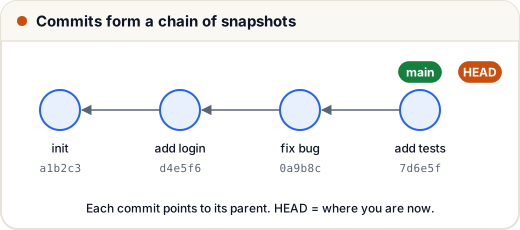
Each commit has a unique id, an author, a time, a message and a pointer to its parent. HEAD marks the commit you're on.
5. Good commit messages
- Short summary in the imperative: "Add login form", "Fix price rounding" (not "added stuff").
- One logical change per commit.
- Commit often — small commits are easy to understand and undo.
6. .gitignore: files Git should never track
Create a .gitignore file:
node_modules/
.env
*.log
dist/
__pycache__/
Never commit secrets (passwords, API keys,
.envfiles). Once pushed to GitHub, assume they're leaked — rotate them immediately.
Common mistakes
- Running
git initin your home folder (it tracks everything!). - Huge commits with messages like "update".
- Committing
node_modulesor.env.
Quick recap
- Configure name and email once.
- Working directory →
git add→ staging →git commit→ repository. status,diff,log --oneline,showto look around.- Small commits, clear messages,
.gitignorefor build files and secrets.