Git & GitHub · Lesson 3 of 5 · Updated ·
GitHub — Remotes, clone, push, pull and Pull Requests
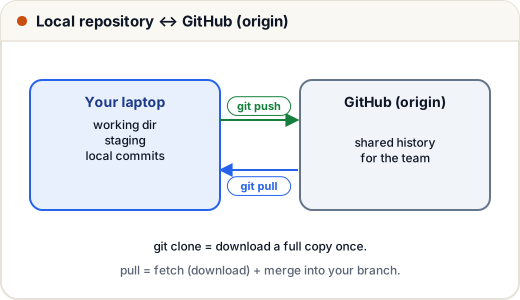
Git runs on your computer. GitHub hosts your repositories online so you can back them up, share them, collaborate and show them to recruiters. (GitLab and Bitbucket are similar.)
1. Put an existing project on GitHub
- Create an empty repository on github.com (no README if you already have one locally).
- Connect and push:
git remote add origin https://github.com/your-name/portfolio.git
git push -u origin main        # -u remembers origin/main for next time
Later pushes are just git push.
2. Clone, pull and fetch
git clone https://github.com/your-name/portfolio.git   # full copy with history
git pull                    # = fetch + merge: get teammates' commits into your branch
git fetch                   # download new commits but don't change your files
git log origin/main --oneline   # see what came in
| fetch | pull | |
|---|---|---|
| Downloads new commits | ✓ | ✓ |
| Changes your branch / files | ✗ | ✓ (merges) |
| Safe to run anytime | ✓ | can cause conflicts |
Run
git pullbefore you start working each day, and before you push.
3. The pull request (PR) workflow
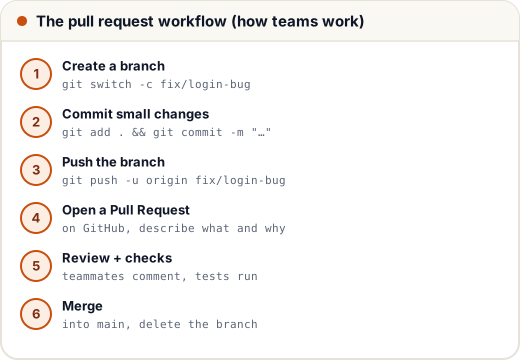
A pull request asks: "please review my branch and merge it into main". Teammates comment on lines, automated tests run, and someone approves.
A good PR:
- small (under ~300 lines changed) and about one thing
- a clear title and description: what changed and why, plus screenshots for UI changes
- tests passing
4. Contributing to someone else's project (forks)
- Fork the repo (your own copy on GitHub).
- Clone your fork, branch, commit, push to your fork.
- Open a PR from your fork to the original repository.
This is how open-source contributions work — great for your résumé (e.g. Hacktoberfest, GSSoC).
5. HTTPS vs SSH
- HTTPS — asks for a personal access token (GitHub no longer accepts passwords).
- SSH — set up a key once, then no prompts:
ssh-keygen -t ed25519 -C "asha@example.com"
# add the contents of ~/.ssh/id_ed25519.pub to GitHub → Settings → SSH keys
git remote set-url origin git@github.com:your-name/portfolio.git
6. A GitHub profile that gets interviews
- 3–6 pinned projects with a clear README: what it does, screenshots, tech stack, live link, how to run.
- Regular commits (a green contribution graph shows consistency).
- A profile README with your skills and contact.
- Clean commit history — no "final final 2" commits, no secrets.
Common mistakes
- Pushing secrets (API keys,
.env). git push --forceon a shared branch (overwrites teammates' work).- Huge PRs that nobody can review.
Quick recap
git remote add origin URL→git push -u origin main.- clone (copy), fetch (download only), pull (download + merge), push (upload).
- Branch → push → pull request → review → merge.
- Fork + PR for open source; SSH keys for passwordless pushes.