Cloud & DevOps · Lesson 2 of 9 · Updated ·
Linux for DevOps — Files, Permissions, Processes, Logs and the Commands You'll Use Daily
Over 90% of cloud servers run Linux. Even if you code on Windows, the moment you deploy, debug production or write a Dockerfile, you're in a Linux shell. This lesson covers the commands DevOps engineers actually use every day.
1. The file system
Everything starts at / (root). Important folders:
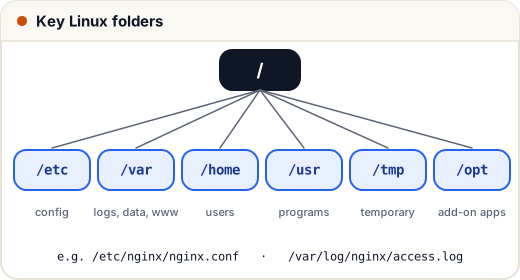
| Folder | What lives there |
|---|---|
/etc | configuration (/etc/nginx/nginx.conf, /etc/ssh/sshd_config) |
/var/log | logs (/var/log/nginx/access.log, /var/log/syslog) |
/var/www | websites (by convention) |
/home/<user> | each user's files (~ is a shortcut for yours) |
/usr/bin | installed programs |
/tmp | temporary files (cleared on reboot) |
Navigation basics:
| Command | Does |
|---|---|
pwd | print current folder |
ls -la | list all files with details (incl. hidden .files) |
cd /var/log / cd .. / cd ~ | change folder / up one / home |
mkdir -p app/logs | create folders (with parents) |
cp -r src dst, mv a b, rm file | copy, move/rename, delete (rm -r for folders — careful!) |
cat, less, head -20, tail -f | view files; tail -f follows a log live |
nano file / vim file | edit a file |
find /var/www -name "*.log" | search for files |
df -h, du -sh * | disk free / folder sizes |
2. Permissions: what chmod 755 really means
ls -l shows something like:
-rwxr-xr-- 1 deploy www-data 2048 Nov 10 09:00 deploy.sh
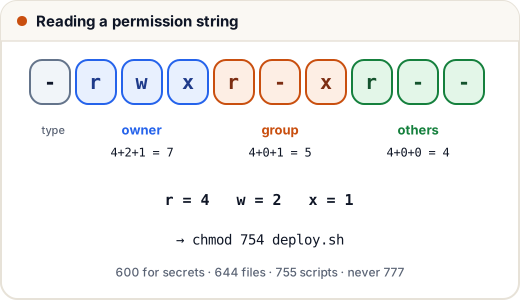
- First character:
-file,ddirectory. - Then three groups of
rwx: owner, group, others. r= read (4),w= write (2),x= execute (1). Add them per group.
Let's decode permission strings with a few lines of Python to check our arithmetic:
def to_octal(perm):
    value = {"r": 4, "w": 2, "x": 1, "-": 0}
    digits = [sum(value[c] for c in perm[i:i + 3]) for i in (0, 3, 6)]
    return "".join(map(str, digits))

for p in ["rwxr-xr-x", "rw-r--r--", "rwx------", "rw-rw----", "rwxr-xr--"]:
    print(p, "->", to_octal(p))
rwxr-xr-x -> 755
rw-r--r-- -> 644
rwx------ -> 700
rw-rw---- -> 660
rwxr-xr-- -> 754
| Number | Typical use |
|---|---|
755 | scripts and folders everyone may read/enter, only owner writes |
644 | normal files (web pages, configs) |
600 | secrets: .env, SSH private keys — only the owner can read |
700 | private folders like ~/.ssh |
777 | never in production — anyone can modify |
Commands: chmod 600 .env, chmod +x deploy.sh, chown deploy:www-data file. Run admin commands with sudo, and log in as a normal user, not root.
3. Processes and services
| Command | Does |
|---|---|
ps aux | grep node | find running processes |
top / htop | live CPU and memory per process |
kill <PID> / kill -9 <PID> | ask a process to stop / force it |
free -h | memory usage |
ss -tlnp | which processes listen on which ports |
On servers, long-running programs run as services managed by systemd, so they start on boot and restart if they crash:
# /etc/systemd/system/myapp.service
[Unit]
Description=My Node.js app
After=network.target

[Service]
User=deploy
WorkingDirectory=/var/www/myapp
ExecStart=/usr/bin/node server.js
Restart=always
EnvironmentFile=/var/www/myapp/.env

[Install]
WantedBy=multi-user.target
sudo systemctl daemon-reload          # after creating/editing a unit file
sudo systemctl enable --now myapp     # start now and on every boot
systemctl status myapp                # is it running? last log lines
journalctl -u myapp -f                # follow its logs
sudo systemctl restart myapp
(Node.js apps often use PM2 instead, which does the same job — Skills101 itself runs this way behind nginx.)
4. Pipes: small tools, big power
| sends one command's output into the next. With grep, awk, sort, uniq, wc and cut you can answer most "what's happening on this server?" questions in seconds.
A sample nginx access log (access.log):
203.0.113.7 - - [10/Nov/2026:09:01:12 +0530] "GET / HTTP/1.1" 200 5120
198.51.100.2 - - [10/Nov/2026:09:01:15 +0530] "GET /learn/python HTTP/1.1" 200 18234
203.0.113.7 - - [10/Nov/2026:09:01:20 +0530] "POST /login HTTP/1.1" 401 312
203.0.113.7 - - [10/Nov/2026:09:01:22 +0530] "POST /login HTTP/1.1" 401 312
192.0.2.44 - - [10/Nov/2026:09:01:30 +0530] "GET /compiler/java HTTP/1.1" 200 9431
203.0.113.7 - - [10/Nov/2026:09:01:31 +0530] "POST /login HTTP/1.1" 401 312
198.51.100.2 - - [10/Nov/2026:09:02:02 +0530] "GET /api/courses HTTP/1.1" 500 87
192.0.2.44 - - [10/Nov/2026:09:02:10 +0530] "GET /learn/java HTTP/1.1" 200 16550
Each line: client IP, time, request, status code (field 9 when split on spaces), bytes.
How many failed logins (401)?
$ grep " 401 " access.log | wc -l
3
Which IPs send the most requests?
$ awk '{print $1}' access.log | sort | uniq -c | sort -rn
      4 203.0.113.7
      2 198.51.100.2
      2 192.0.2.44
Any server errors (5xx)?
$ awk '$9 >= 500' access.log
198.51.100.2 - - [10/Nov/2026:09:02:02 +0530] "GET /api/courses HTTP/1.1" 500 87
Status code summary:
$ awk '{print $9}' access.log | sort | uniq -c
      4 200
      3 401
      1 500
Reading this like an engineer: 203.0.113.7 made 3 failed logins in 11 seconds — a possible password-guessing bot (rate-limit or block it), and /api/courses threw a 500 — check the app log for that minute. (These outputs come from actually running the commands on the file above.)
5. SSH: logging in to servers
ssh-keygen -t ed25519 -C "you@example.com"     # creates ~/.ssh/id_ed25519 (private) + .pub (public)
ssh-copy-id deploy@203.0.113.10                # put your PUBLIC key on the server
ssh deploy@203.0.113.10                        # log in with the key, no password
scp build.zip deploy@203.0.113.10:/var/www/    # copy a file to the server
Hardening checklist for /etc/ssh/sshd_config: PasswordAuthentication no, PermitRootLogin no, keys only, plus fail2ban to block repeated failures and a firewall (ufw allow 22,80,443/tcp). Never share or commit your private key.
6. Case study: "the site is slow"
You get an alert at 10 p.m. A calm 5-minute routine:
uptime/top— is CPU pegged? which process?free -h— out of memory? (look for the process using most RAM)df -h— disk full? (full disks break databases and logging) →du -sh /var/log/*tail -f /var/log/nginx/error.logand your app's logs — what's failing right now?awkthe access log — is one IP or one URL hammering you?
In this real-world pattern, the cause was a log file that grew to fill the disk. Fix: delete old logs safely, then set up logrotate so it never happens again — and add a disk-space alert.
Common mistakes
- Running everything as
root. chmod -R 777to "fix" a permission error — fix the owner (chown) or the specific permission instead.rm -rfwith a variable that might be empty (rm -rf $DIR/can becomerm -rf /). Double-check paths.- Editing config without testing it (
nginx -tchecks nginx config before you reload).
Quick recap
- Know the key folders:
/etcconfig,/var/loglogs,/homeusers. - Permissions: owner/group/others × r(4) w(2) x(1);
600for secrets,755for scripts, never777. - Services run under systemd (
systemctl,journalctl). - Pipes with
grep | awk | sort | uniq -cturn logs into answers. - SSH with keys; disable password and root login.