Software Testing & Automation · Lesson 5 of 11 · Updated ·
Handling Web Elements in Selenium — Dropdowns, Checkboxes, Alerts, Tables, Frames and Windows
Real pages aren't just text boxes. This lesson covers the elements that appear in almost every automation interview — with tests that pass on our practice page.
1. The practice page
<!-- File: src/test/resources/site/practice.html (excerpt) -->
<!-- dropdown -->
<label for="city">City</label>
<select id="city" name="city">
  <option value="">Choose…</option>
  <option value="jaipur">Jaipur</option>
  <option value="pune">Pune</option>
  <option value="bengaluru">Bengaluru</option>
</select>

<!-- checkbox enables the button -->
<label><input id="terms" type="checkbox"> I agree to the terms</label>
<button id="place-order" disabled>Place order</button>

<!-- JavaScript alert -->
<p id="order-status"></p>

<!-- table -->
<table id="marks">
  <thead><tr><th>Name</th><th>Marks</th></tr></thead>
  <tbody>
    <tr><td>Asha</td><td>92</td></tr>
    <tr><td>Ravi</td><td>74</td></tr>
    <tr><td>Neha</td><td>85</td></tr>
  </tbody>
</table>
2. Dropdowns, checkboxes and alerts
// File: src/test/java/com/skills101/qa/ui/FormElementsTest.java
package com.skills101.qa.ui;

import static org.testng.Assert.assertEquals;
import static org.testng.Assert.assertFalse;
import static org.testng.Assert.assertTrue;

import com.skills101.qa.base.BaseUiTest;
import java.time.Duration;
import org.openqa.selenium.Alert;
import org.openqa.selenium.By;
import org.openqa.selenium.WebElement;
import org.openqa.selenium.support.ui.ExpectedConditions;
import org.openqa.selenium.support.ui.Select;
import org.openqa.selenium.support.ui.WebDriverWait;
import org.testng.annotations.Test;

public class FormElementsTest extends BaseUiTest {

    @Test
    public void dropdownWithSelect() {
        driver.get(baseUrl + "/practice.html");
        Select city = new Select(driver.findElement(By.id("city")));

        city.selectByVisibleText("Pune");
        assertEquals(city.getFirstSelectedOption().getDomAttribute("value"), "pune");

        city.selectByValue("bengaluru");
        assertEquals(city.getFirstSelectedOption().getText(), "Bengaluru");
        assertEquals(city.getOptions().size(), 4);
    }

    @Test
    public void checkboxEnablesButtonAndAlertIsAccepted() {
        driver.get(baseUrl + "/practice.html");
        WebElement terms = driver.findElement(By.id("terms"));
        WebElement placeOrder = driver.findElement(By.id("place-order"));

        assertFalse(placeOrder.isEnabled());
        terms.click();
        assertTrue(terms.isSelected());
        assertTrue(placeOrder.isEnabled());

        placeOrder.click();
        Alert alert = new WebDriverWait(driver, Duration.ofSeconds(5)).until(ExpectedConditions.alertIsPresent());
        assertEquals(alert.getText(), "Order placed!");
        alert.accept();   // press OK (dismiss() would press Cancel)

        assertEquals(driver.findElement(By.id("order-status")).getText(), "Order confirmed");
    }
}
Selectworks only with HTML<select>elements:selectByVisibleText,selectByValue,selectByIndex,getOptions,getFirstSelectedOption. Custom dropdowns made of<div>s are clicked like normal elements.- Checkboxes and radio buttons:
click()toggles;isSelected()reads the state.isEnabled()tells whether a button can be clicked. - JavaScript alerts block the page until handled: wait for
alertIsPresent(), thengetText(),accept()(OK),dismiss()(Cancel) orsendKeys()(prompt boxes).
Tables were covered in the locators lesson: findElements(By.cssSelector("#marks tbody tr")) gives the rows; XPath like //td[text()='Neha']/following-sibling::td reads a cell next to a known value.
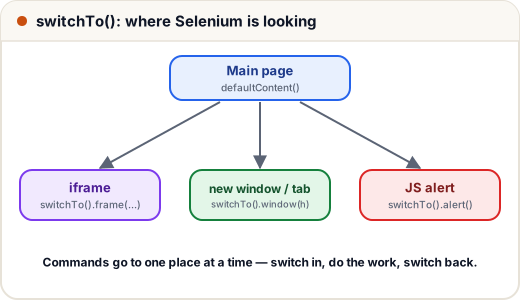
3. Frames, windows, actions, JavaScript
Our practice page doesn't have these, so here are the patterns (Selenium 4 API):
// Not compiled: patterns to adapt — our practice page has no frames or pop-up windows
// Frames: switch in, work, switch back
driver.switchTo().frame("payment-frame");            // by name/id, index or WebElement
driver.findElement(By.id("card-number")).sendKeys("4111111111111111");
driver.switchTo().defaultContent();

// New window or tab
String main = driver.getWindowHandle();
driver.findElement(By.linkText("Open invoice")).click();
for (String handle : driver.getWindowHandles()) {
    if (!handle.equals(main)) driver.switchTo().window(handle);
}
driver.close();                                       // close the new window
driver.switchTo().window(main);

// Mouse and keyboard
new Actions(driver).moveToElement(menu).click(item).perform();          // hover menus
new Actions(driver).dragAndDrop(source, target).perform();
new Actions(driver).keyDown(Keys.CONTROL).sendKeys("a").keyUp(Keys.CONTROL).perform();

// JavaScript, when nothing else works
((JavascriptExecutor) driver).executeScript("arguments[0].scrollIntoView(true);", element);

// Screenshot
File shot = ((TakesScreenshot) driver).getScreenshotAs(OutputType.FILE);
Our BaseUiTest already saves a screenshot automatically whenever a UI test fails (target/screenshots/<test>.png).
File upload: driver.findElement(By.cssSelector("input[type='file']")).sendKeys("C:/files/resume.pdf") — send the file path, no dialog needed.
Common mistakes
- Using
Selecton a custom<div>dropdown (it only works on<select>). - Forgetting to switch back with
defaultContent()after a frame. - Clicking a button before checking
isEnabled()or waiting forelementToBeClickable. - Clicking through JavaScript to "fix" a test — it hides real bugs users would hit.
Quick recap
Selectfor<select>;isSelected/isEnabledfor checkboxes and buttons.- Alerts: wait, then
accept/dismiss/getText. switchTo().frame(...),switchTo().window(...),defaultContent().Actionsfor hover, drag-drop and key combinations;JavascriptExecutoras a last resort.