# Selenium Locators — id, name, CSS Selectors and XPath with Examples
Source: https://skills101.in/learn/test-automation/selenium-locators-css-xpath — Skills101 free tutorial (Software Testing & Automation). Updated 2026-11-09.
A test is only as stable as its **locators** — the way it finds elements on the page. Good locators survive design changes; bad ones break every sprint.
## 1. The page we test
Part of our practice login page:
```html
Practice page
```
## 2. Eight locator strategies
```java
// File: src/test/java/com/skills101/qa/ui/LocatorsTest.java
package com.skills101.qa.ui;
import static org.testng.Assert.assertEquals;
import com.skills101.qa.base.BaseUiTest;
import java.util.List;
import org.openqa.selenium.By;
import org.openqa.selenium.WebElement;
import org.testng.annotations.Test;
public class LocatorsTest extends BaseUiTest {
@Test
public void eightWaysToFindTheSameKindOfElement() {
driver.get(baseUrl + "/login.html");
WebElement byId = driver.findElement(By.id("email"));
WebElement byName = driver.findElement(By.name("password"));
WebElement byClass = driver.findElement(By.className("primary"));
WebElement byTag = driver.findElement(By.tagName("h1"));
WebElement byLinkText = driver.findElement(By.linkText("Practice page"));
WebElement byPartialLink = driver.findElement(By.partialLinkText("Practice"));
WebElement byCss = driver.findElement(By.cssSelector("input[type='email']"));
WebElement byXpath = driver.findElement(By.xpath("//button[text()='Log in']"));
assertEquals(byId.getDomAttribute("placeholder"), "you@example.com");
assertEquals(byName.getDomAttribute("type"), "password");
assertEquals(byClass.getText(), "Log in");
assertEquals(byTag.getText(), "Log in");
assertEquals(byLinkText.getDomProperty("href"), baseUrl + "/practice.html");
assertEquals(byPartialLink, byLinkText); // same element
assertEquals(byCss, byId);
assertEquals(byXpath, byClass);
}
@Test
public void findElementsReturnsAList() {
driver.get(baseUrl + "/practice.html");
List rows = driver.findElements(By.cssSelector("#marks tbody tr"));
assertEquals(rows.size(), 3);
// XPath can move from one cell to its neighbour: the marks next to "Neha"
String nehaMarks = driver.findElement(By.xpath("//table[@id='marks']//td[text()='Neha']/following-sibling::td")).getText();
assertEquals(nehaMarks, "85");
// findElements never throws: an empty list means "not on the page"
assertEquals(driver.findElements(By.id("does-not-exist")).size(), 0);
}
}
```
Both tests pass. The first one proves that the different locators find the **same** elements; the second reads a table and shows that `findElements` returns an empty list instead of failing.
## 3. CSS selector cheat sheet
| CSS | Finds |
|---|---|
| `#email` | id = email |
| `.primary` | class contains primary |
| `input[type='email']` | attribute equals |
| `a[href*='practice']` | attribute contains |
| `input[name^='pass']` | attribute starts with |
| `#marks tbody tr` | descendants (any depth) |
| `form > button` | direct child |
| `tr:nth-child(2) td:first-child` | position |
## 4. XPath cheat sheet
| XPath | Finds |
|---|---|
| `//button[@id='login-btn']` | any button with that id |
| `//button[text()='Log in']` | exact text |
| `//a[contains(text(),'Practice')]` | text contains |
| `//input[@type='email' and @name='email']` | two conditions |
| `//td[text()='Neha']/following-sibling::td` | the next cell |
| `//td[text()='Neha']/parent::tr` | go up to the row |
| `(//tr)[2]` | the second row on the page |
**Absolute** XPath (`/html/body/div[2]/form/input[1]`) breaks as soon as the layout changes — always use **relative** XPath starting with `//`.
**CSS vs XPath:** CSS is shorter and a little faster; XPath can match **text** and move **up** to parents. Use CSS by default, XPath when you need text or parents.
## 5. Best practices
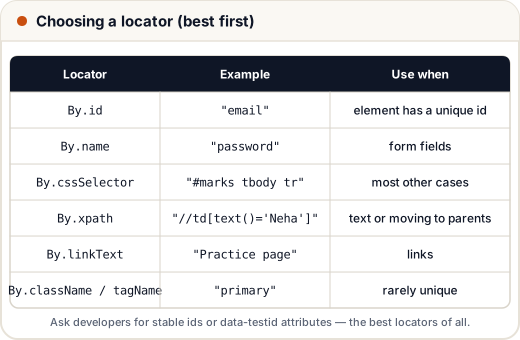
- Prefer `id`, `name` or a dedicated test attribute: ask developers to add `data-testid="login-button"` and use `By.cssSelector("[data-testid='login-button']")`.
- Avoid auto-generated ids (`id="ember1234"`) and long position-based paths.
- Check a locator in Chrome DevTools first: press **Ctrl+F** in the Elements panel and type the CSS or XPath.
## Common mistakes
- `By.className("btn primary")` — `className` takes **one** class; use `By.cssSelector(".btn.primary")`.
- Absolute XPath copied from DevTools.
- Locators that depend on text that will be translated (e.g. Hindi and English versions of the site).
## Quick recap
- Order of preference: id → name → CSS → XPath (for text/parents) → linkText.
- CSS: `#id`, `.class`, `[attr='v']`, `parent child`. XPath: `//tag[@attr='v']`, `text()`, `contains()`, axes like `following-sibling` and `parent`.
- Ask for `data-testid` attributes; never use absolute XPath.
Practice quiz and free certificate: https://skills101.in/learn/test-automation/selenium-locators-css-xpath